
Stop Logging In to Download Reports.
AutoPull Does It for You.
Show Pulse once how you get your report — sign in, pick the dates, click download. AutoPull then signs in on schedule, handles two-factor codes, downloads your reports, invoices, and statements, and turns every file into structured data. No scripts. No IT project.
The Problem
The Monday-Morning Download Ritual
Somewhere on your team, someone signs in to a vendor portal, a bank site, or a payment dashboard, re-picks the same date range, clicks the same Export button, renames the file, and re-keys what's inside. Every week. Every month. For every account. AutoPull gives that time back.
Downloading reports by hand
- Open the portal, sign in, and hunt for the texted or emailed code
- Find the right report and pick the date range — again
- Download, rename, and file it somewhere people can find it
- Re-key the numbers into your accounting system or spreadsheet
- Repeat for every vendor, every account, every period
With Pulse AutoPull
- Pulse signs in for you — two-factor codes included
- Dates update themselves: “last month” always means last month
- Files download on schedule, whether or not anyone remembers
- Data is extracted and delivered to your systems automatically
- You only hear about it when something actually needs a person
How It Works
How to Automatically Download Reports From a Website
Four steps from “I do this every month” to “it just shows up” — no code, even behind a login.
Show Pulse Once
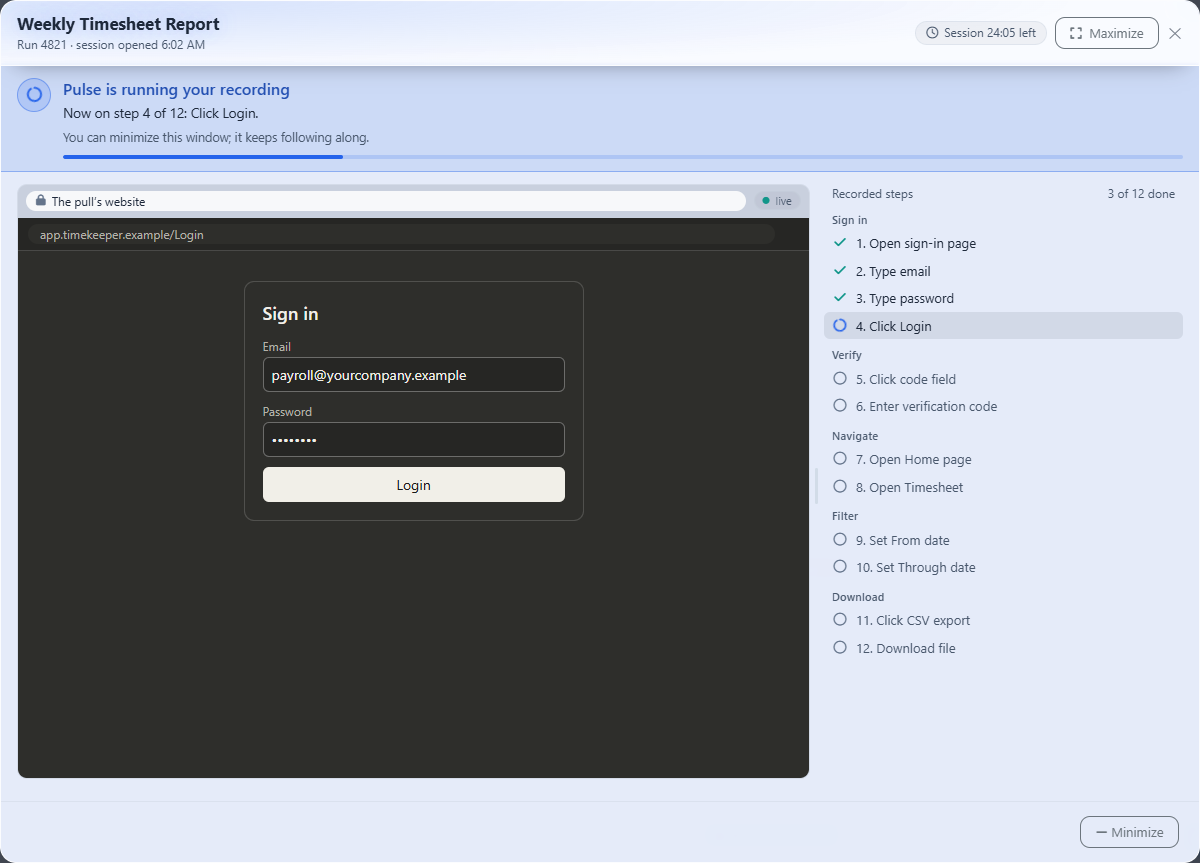
Open a secure live browser inside Pulse and do the task the way you normally would. Every click becomes a plain-English step — passwords and codes are masked.
Pulse Remembers It
Save your login (encrypted), add an authenticator key or an email rule for one-time codes, and choose how dates should work. “Last month” stays “last month.”
It Runs on Schedule
Daily, weekly, monthly, or on demand — in your time zone. Each run opens a fresh secure browser, signs in, and downloads the file or captures the page.
Data Arrives Ready to Use
Files flow into Pulse Data Automation — template or AI extraction — then out to your accounting system, spreadsheet, or app through API and webhooks.
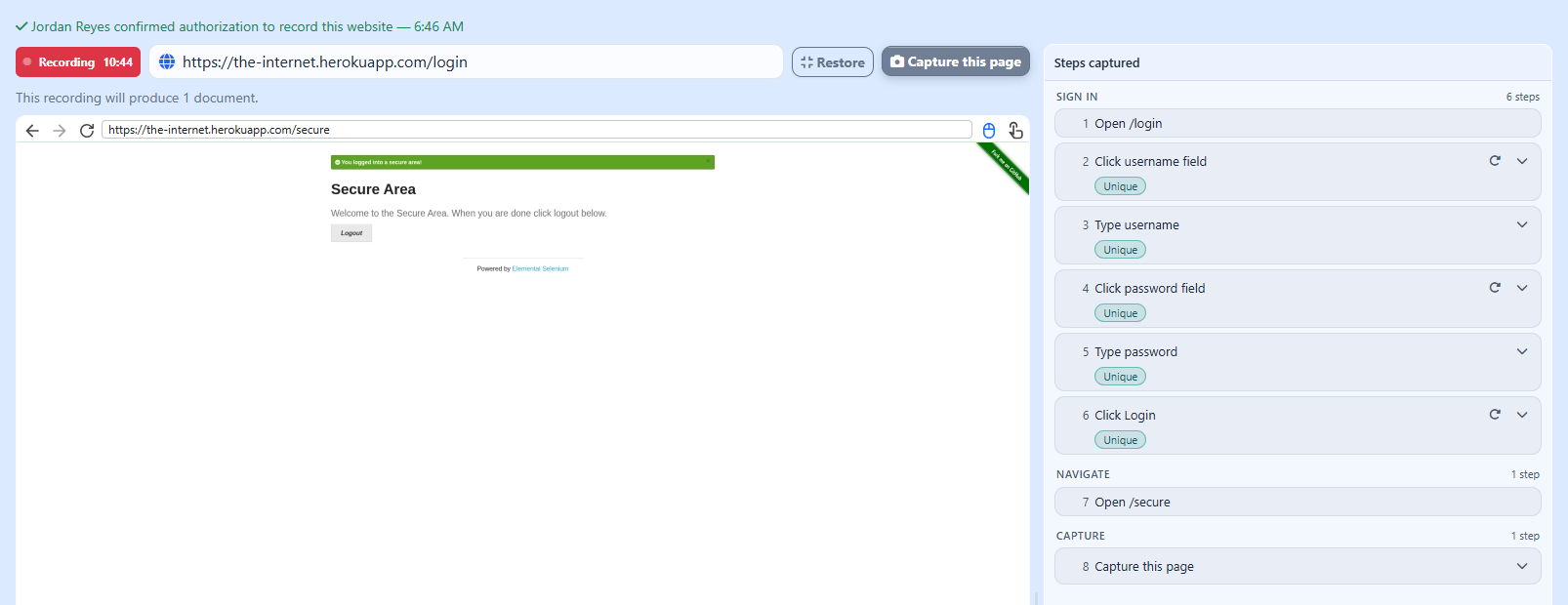
Record it once: sign in, navigate, and capture — Pulse turns each click into a step it can replay on schedule.
What's Included
Built for the Real-World Messiness of Logins
Works Behind the Login
Pulse signs in with credentials you've saved, encrypted with AES-256-GCM using keys specific to your account.
Two-Factor, Handled
Authenticator-app codes are generated automatically. Emailed codes are read automatically through a simple forwarding rule. Text-message codes? Pulse pauses and asks a teammate to type it in.
Dates That Never Go Stale
Tell Pulse “last month,” “last week,” or “year to date” once. Every run picks the right dates — Pulse even suggests the setting from your recording.
Files or Web Pages
Download CSV, Excel, PDF, image, or XML files — several per pull if you need them — or capture the data shown on the page itself, including paginated lists.
Keep Only the Rows You Need
Add simple rules — contains, equals, greater than — so a giant export becomes just the rows you actually care about.
Recovers When Sites Change
If a website changes and a step breaks, Pulse pauses and alerts the right person. They finish it in a live view, Pulse continues the run — and can remember the fix.
Roll Out to Many Sites
Recorded one portal? Duplicate it for up to 100 similar sites, locations, or vendor accounts from a simple list — each with its own login.
Always Know It Worked
A health dashboard shows success rates and what went wrong in plain language. Every pulled document links back from the run history.
Straight Into Your Workflow
Pulled files flow through Data Automation and out through your API & webhooks. No re-entry, no “where did I save that file?”
See It In Action
Real Screens. Real Automation.
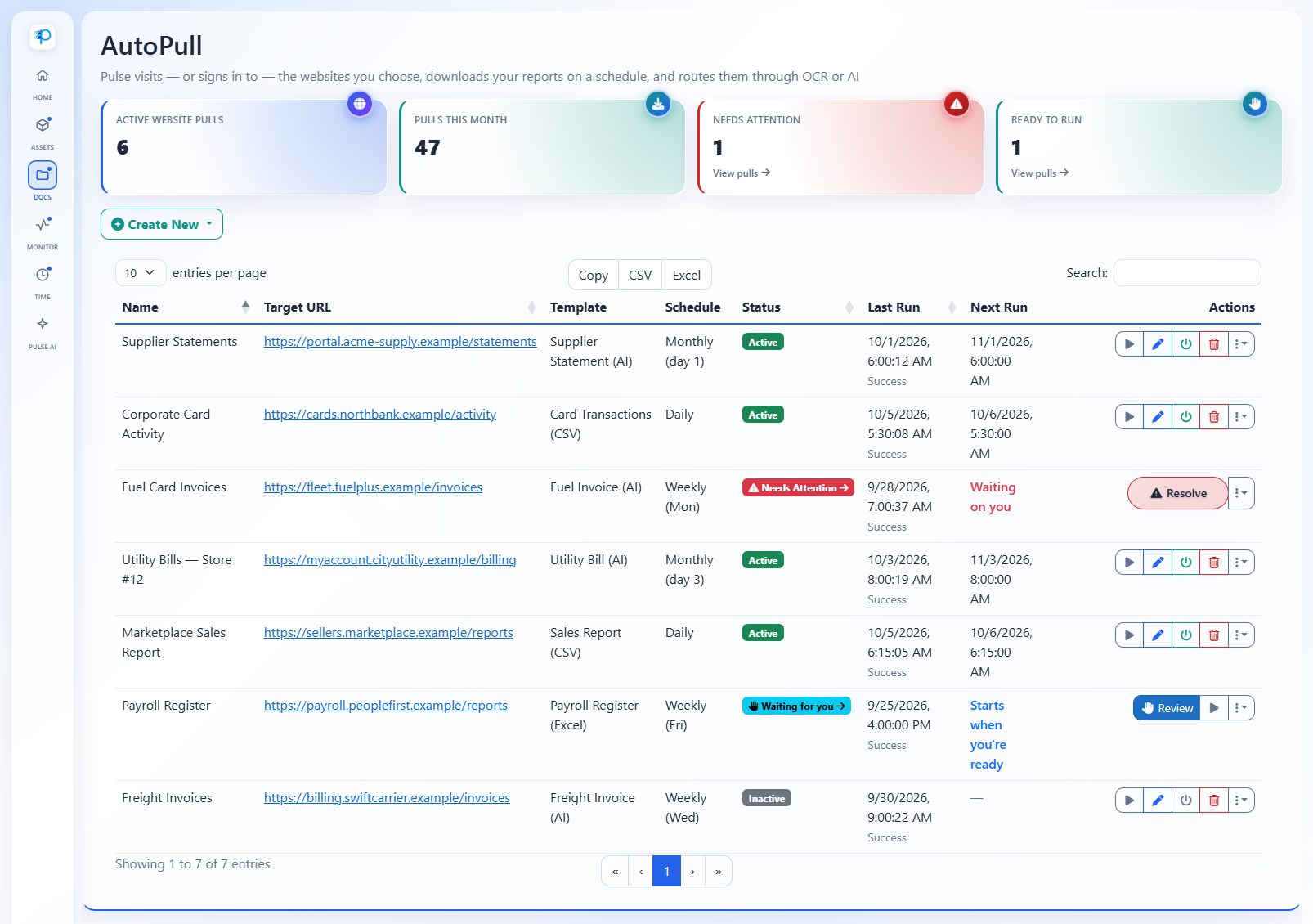
Every Portal, One Dashboard
See every scheduled pull at a glance — when it last ran, when it runs next, and whether anything is waiting on a person. Run one now, pause it, or re-record it in a click.
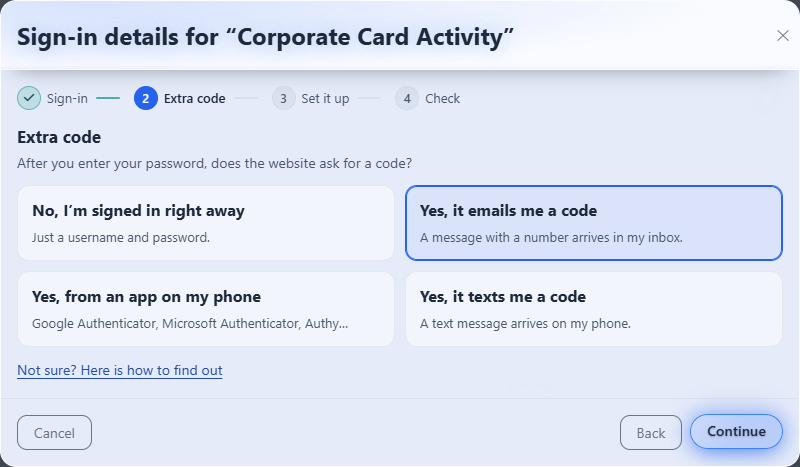
Two-Factor Logins, Answered in Plain English
Does the site email you a code, use an authenticator app, or text you? Pick one and Pulse handles the rest — generating authenticator codes, reading emailed codes, or pausing for a person when a text is the only option. How 2FA automation works →
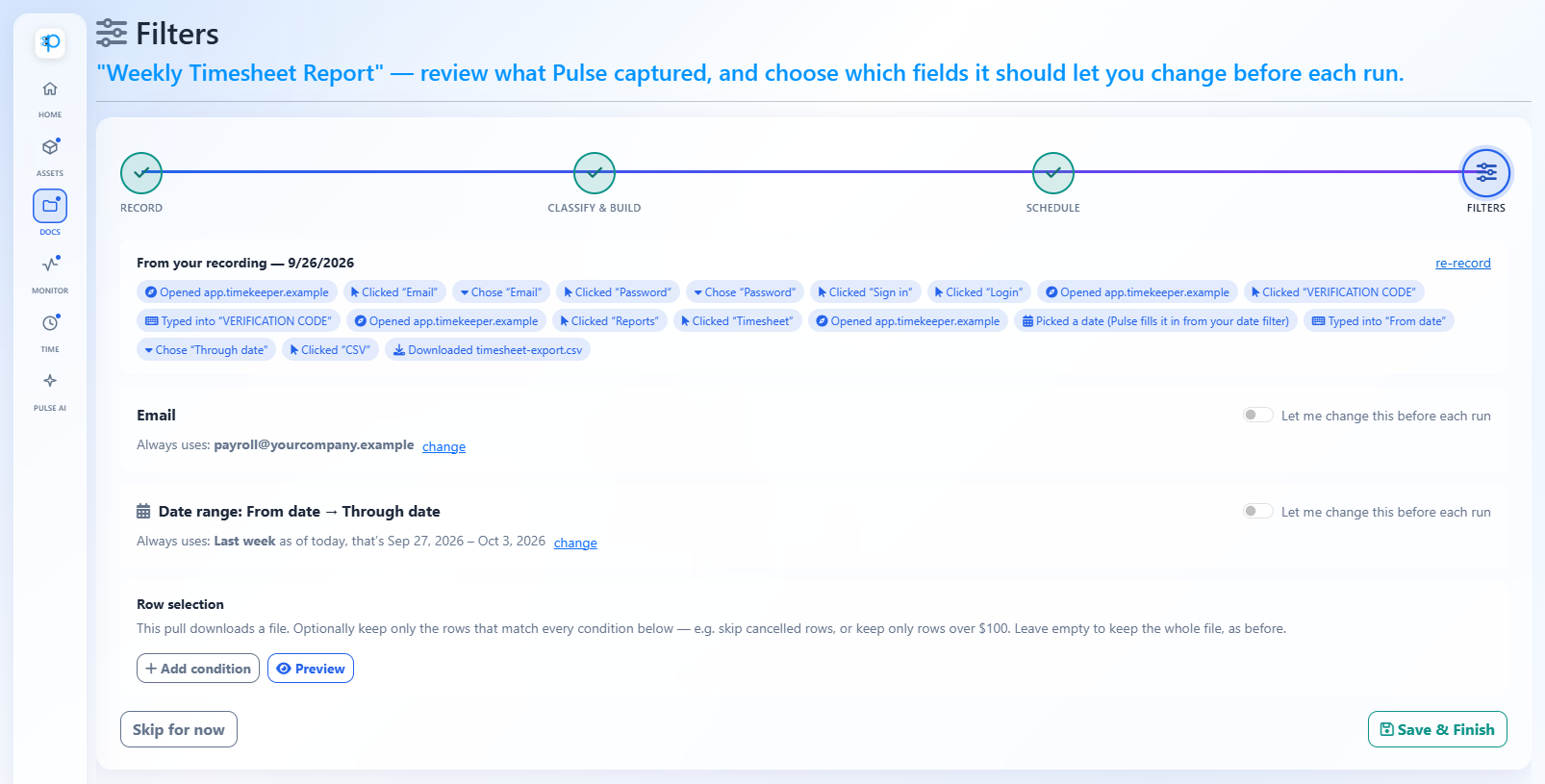
Relative Dates That Keep Up With the Calendar
Recorded “Sep 27 – Oct 3”? Pulse recognizes it as “last week” and picks the right range on every run — last month, quarter to date, the first of the month, and more.
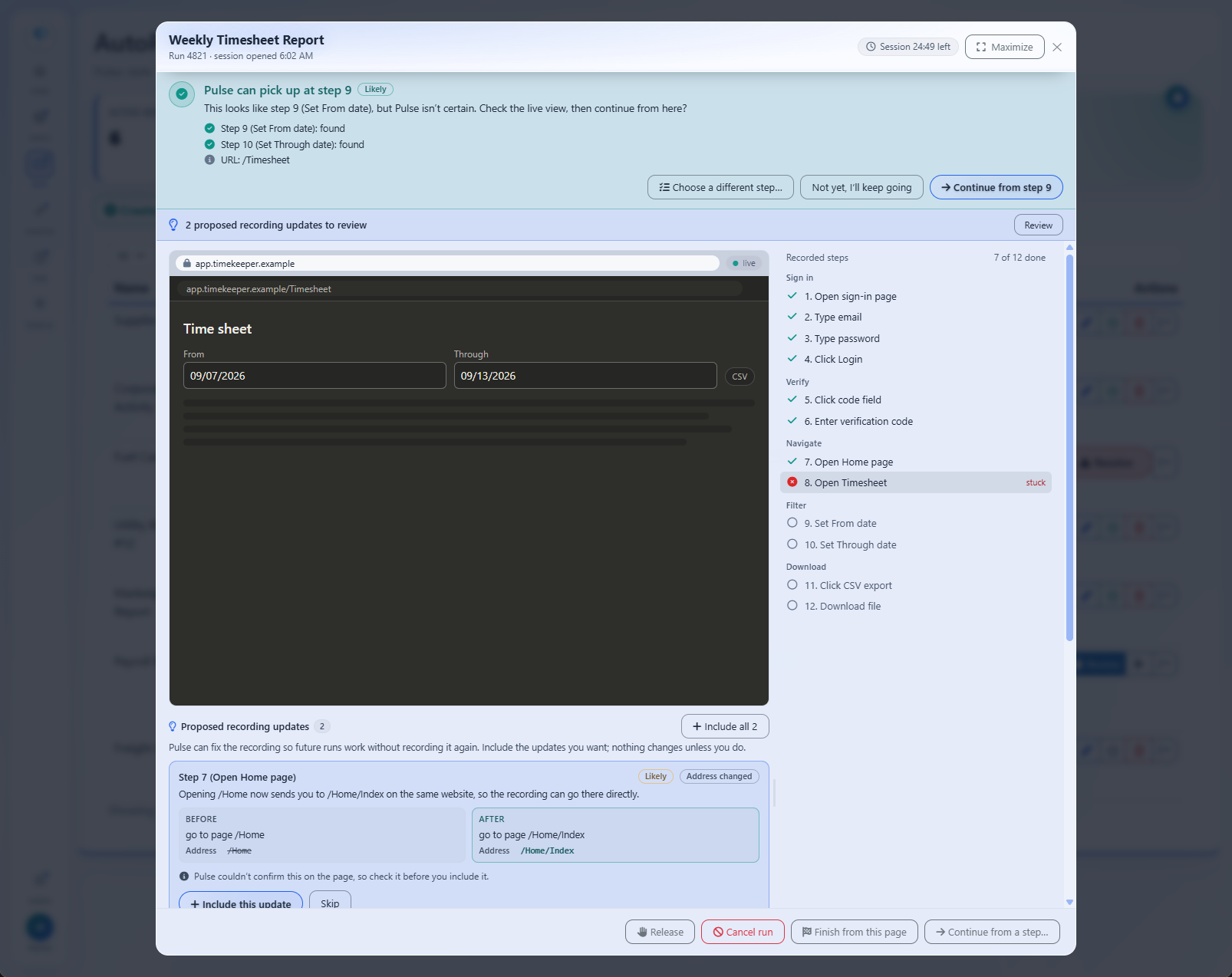
When a Website Changes, a Person Fixes It in Minutes
Pulse stops at the step that broke, shows a teammate the live page, and offers to pick up where it left off. It even proposes recording updates — nothing changes until someone approves them.
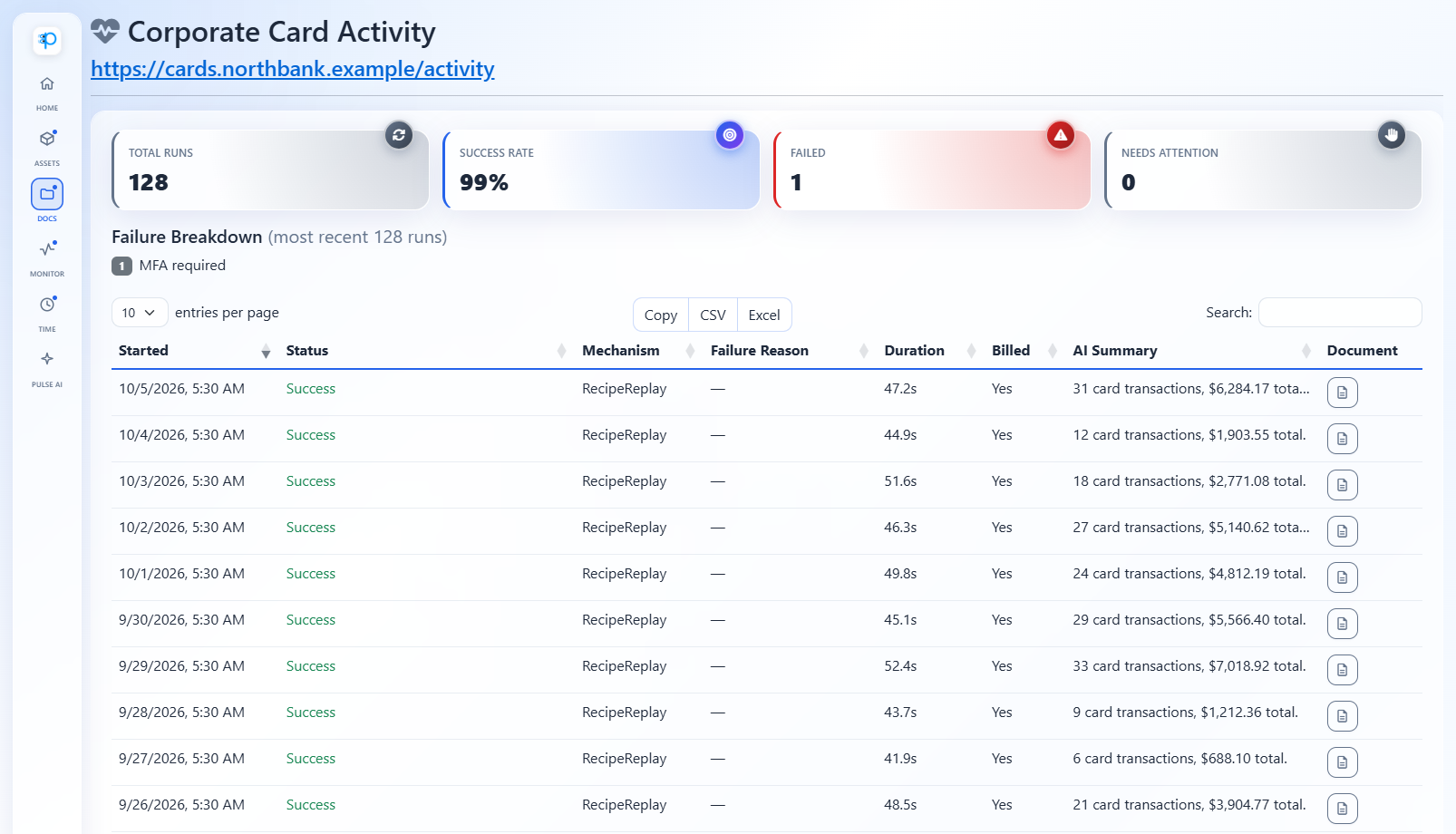
Proof Every Pull Ran
Every run is logged with its result, duration, and the document it produced — plus an optional AI summary of what was in it. The health dashboard rolls it all up across your pulls.
Common Use Cases
What Teams Pull Automatically
If you can sign in and download it, you can schedule it — on accounts you're authorized to use.
Vendor Invoices & Statements
Download invoices from supplier portals automatically, then extract vendor, totals, and due dates for accounts payable.
AP guide →Bank & Card Statements
Pull transaction exports and statements for month-end, so reconciliation starts with the data already in hand.
Bank statement guide →Multi-Location Utility Bills
Record one location's utility, fuel-card, or franchise portal, then duplicate it across every site in minutes.
Multi-location guide →Sales & Payment Reports
Schedule marketplace, payment-processor, and ad-platform exports so the numbers are fresh before Monday's meeting.
Reporting guide →Security & Control
Built for Accounts You Own
- Authorization first. You confirm you're authorized to use a site before every recording.
- Encrypted credentials. Saved logins and authenticator keys are encrypted with AES-256-GCM using account-specific keys.
- You decide who can do what. Separate permissions for viewing, creating, editing, and stepping in when a pull needs help.
- Prefer a go-ahead? Turn on “Always ask first” and a scheduled run waits — unbilled — until someone taps “I'm ready.”
- Full audit trail. Every run, result, and pulled document is kept in your run history.
Honest Assessment
What AutoPull Is Not
- Not for sites you aren't authorized to use. You're responsible for following each website's terms.
- It doesn't solve CAPTCHAs, and sites that block automated access won't be a fit.
- Text-message codes need a person — Pulse asks a teammate to type them in. Authenticator-app and emailed codes are automatic.
AutoPull Pricing
Simple, Honest Math
No seats. No connector fees. No minimums. Months with no pulls cost nothing.
How It Compares
AutoPull vs. the Usual Options
| Pulse AutoPull | DIY Scripts | Fetch-Connector Subscriptions | Enterprise RPA | |
|---|---|---|---|---|
| Setup | Record by clicking | Developer required | Pick from a supported list | Specialist build |
| Any site you can sign in to | If you code it | Supported portals only | Yes | |
| Two-factor logins | Authenticator & emailed codes | You build it | Varies | Varies |
| A person steps in when a site changes | Script just fails | Wait for the vendor | Ticket to the builder | |
| Data extraction included | Yes — $0.25/page | No | Often | Separate product |
| Pricing model | $1.00 per website pull | Developer time | Monthly subscription | Annual license |
| Idle months | $0 | Maintenance | Same fee | Same fee |
General category characteristics, not specific products; individual vendors vary. Pulse pricing is exact and published on our pricing page.
FAQ
AutoPull Questions
Get Your Reports Without Logging In
30-day free trial. Record your first pull, schedule it, and watch the data arrive before your first bill.
Credit card required • Not charged until day 31 • Cancel anytime